

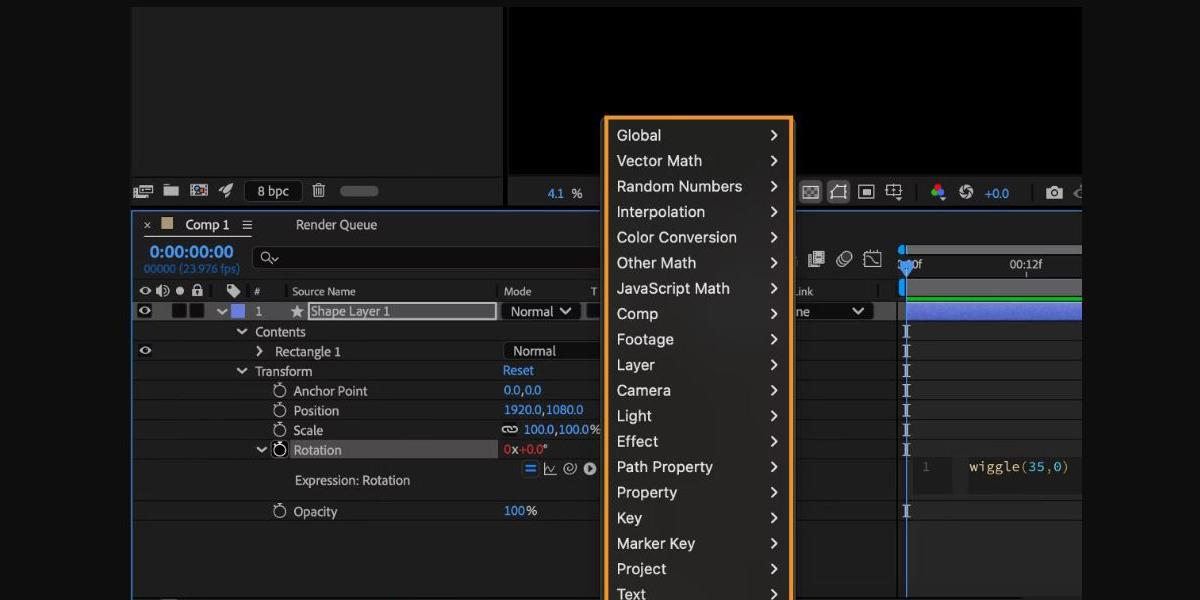
Motion Graphics Templates, or MOGRT files, allow editors to customize animation controls directly in Premiere Pro while complex design lives in After Effects. Round trip workflows connect both apps so teams can iterate without rebuilding. This article explores practical setups, collaboration tips, and performance habits that keep timelines responsive and designs consistent. You will learn how to publish reusable templates, manage versions, and troubleshoot common pitfalls when handing shots back and forth. Together, these methods form the Top 10 MOGRT and Premiere Pro Round-Trip Workflows with Adobe After Effects, giving beginners and advanced users a clear, dependable path to faster delivery.
I. Template planning with the Essential Graphics panel
Start by building a clean master composition that exposes only the controls editors need. Use the Essential Graphics panel to publish sliders, checkboxes, color controls, source text, and dropdown menus. Name each control with friendly language and group them in a logical order that mirrors real editorial choices. Link repeated properties with expressions so one change updates multiple layers. Enable responsive design time to protect intro and outro animations. Test the comp with extreme values to prevent broken layouts, then lock the design. A focused control set keeps Premiere timelines tidy and reduces back and forth.
II. Publishing and versioning your MOGRTs
Export your master as a MOGRT through the Essential Graphics panel and choose a central destination such as Creative Cloud Libraries or a shared drive. Adopt semantic version numbers so editors can see what changed and when to upgrade in live productions. Store a changelog inside the comment field and include thumbnails that preview states and safe zones. When you update a template, preserve parameter names and ranges to maintain compatibility across seasons. Archive earlier versions alongside readme notes and example renders. Establish a replacement policy so projects stay consistent, and validate that older timelines still render correctly before retiring a version.
III. Choosing between Dynamic Link and MOGRTs
Dynamic Link is ideal when shots are still evolving or require heavy effects that Premiere should reference live. MOGRTs are best for repeatable packages, lower thirds, and titles where editors need speed and autonomy in tight schedules. A hybrid approach works well. Lock core branding inside a MOGRT and use Dynamic Link for scenes that demand last minute visual changes. If playback stutters, pre render complex layers in After Effects and replace them with lightweight proxies for editorial. Use render and replace strategically, and always keep a clean chain back to the original composition for revisions.
IV. Building data driven and scalable titles
Plan for scale by separating content from design. Expose source text fields and layout switches so a single template can output multiple variants. Use expressions to auto size text boxes, clamp line lengths, and anchor graphic elements to text baselines reliably. When sequences include many names or stats, prepare a spreadsheet and paste values into Premiere, or drive values from a JSON layer in After Effects before export. Test non Latin characters and right to left scripts for alignment. Reliable typography rules reduce manual fixes and keep bulk updates predictable across teams and episodes worldwide.
V. Responsive design time and protected regions
Protect timing for build in and build out so editors can retime the middle section without breaking animation. Set protected regions in the timeline using responsive design time. In After Effects, structure precomps so transitions live at the edges and content rests in the center for stability. In Premiere, editors can stretch the clip to fit narration while the entrance and exit remain intact. Pair this with responsive design position for pinned layers that avoid collision and preserve safety. These boundaries allow flexible storytelling and reduce the need for custom one off renders during crunch deadlines.
VI. Typography, styles, and brand safety
Lock brand integrity by embedding style controls rather than exposing too many choices. Create paragraph styles in After Effects and map them to Essential Graphics inputs so editors can switch variants safely. Expose color swatches that reference a central control layer, which ensures every element follows the palette precisely. Avoid custom fonts that are unavailable to editors, or distribute licensed fonts through approved channels before rollout. Use faux styles sparingly and test kerning pairs at small sizes. Document do and do not rules inside the template comments so production assistants can hit standards without supervision.
VII. Performance tuning and render strategies
Keep timelines responsive by profiling bottlenecks early during template design. Prefer shape layers, GPU accelerated effects, and precomps that collapse transformations to reduce overdraw significantly. Minimize stacked blurs, noise, grain, and time remapping in templates that must play in real time within Premiere. When performance dips, render heavy layers to intermediates, then rebuild the template around lighter footage or prerenders. In Premiere, use proxies and render and replace for segments that repeat frequently. Queue final deliveries to Adobe Media Encoder to offload encoding and maintain consistency across outputs, codecs, color management, and captions for broadcast reliably.
VIII. Collaboration, libraries, and review cycles
Standardize where assets live so teams never hunt for files across machines. Organize projects with consistent folder names, color labels, and master comps that match your naming convention precisely. Publish MOGRTs to Creative Cloud Libraries for centralized access, then set permissions so producers and editors pull the right builds on schedule. Include usage notes, safe title guides, and example presets in the comments for clarity. Adopt review checkpoints where editors export short previews and designers validate alignment and motion. Quick feedback loops prevent template drift, reduce rejections, and keep turnaround predictable during high volume delivery windows.
IX. Multilingual and accessibility ready templates
Prepare for international and accessible delivery from day one in the schedule. Use language neutral layer names and expose a master switch for regional presets. Test long words, double byte characters, and bidirectional text to guarantee layouts remain readable and consistent. Allow line breaks through forced line controls and set minimum and maximum font sizes. Map colors to accessibility friendly contrast ratios and provide a high contrast preset for safety. Ensure timing leaves space for extended translations and captions. Accessible, multilingual templates reduce rework, simplify compliance, and enable efficient repurposing across markets, platforms, and broadcast standards worldwide.
X. Troubleshooting limitations and common pitfalls
When a template fails inside Premiere, isolate the cause by testing a minimal version. Replace unsupported expressions, time remapping tricks, or third party effects with native alternatives. Check that font licenses are installed on every workstation and that color management settings match between applications. If editors report broken controls, verify property names and ranges did not change between versions. When Dynamic Link renders incorrectly, purge caches, relink media, and open the source composition to refresh connections immediately. Keep a known good diagnostic project that confirms hardware, codecs, and template settings before urgent deliveries to clients.

