

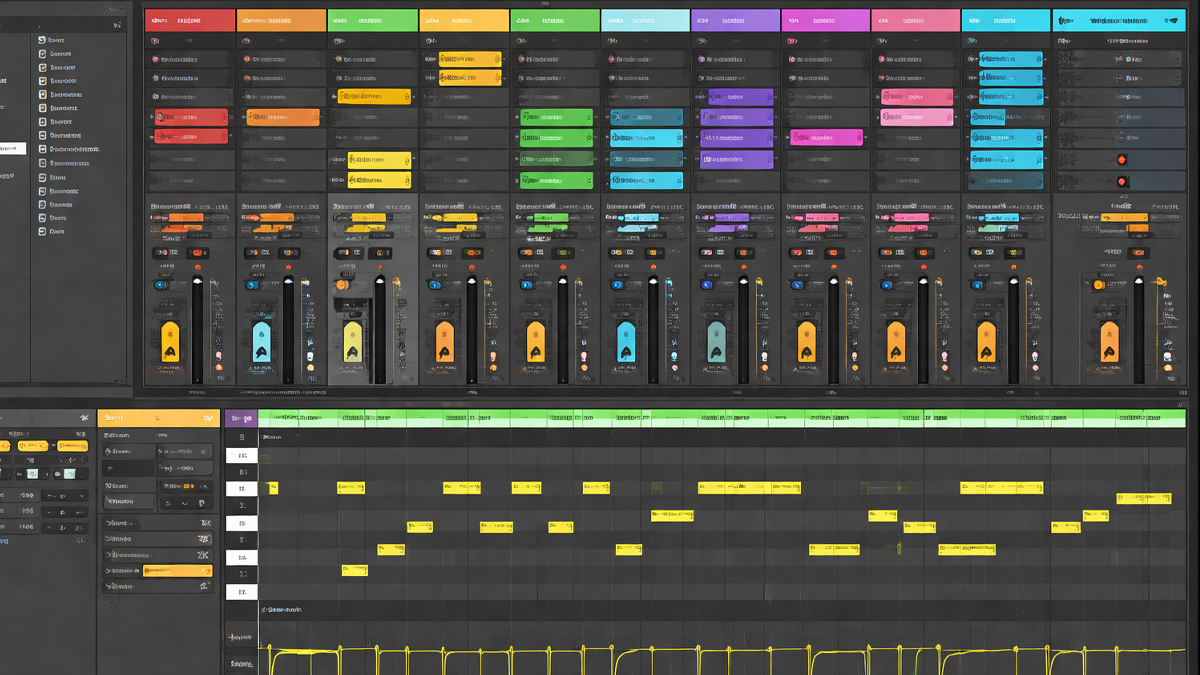
What is DAWs Session View?
DAWs Session View is a nonlinear, clip-based workspace inside many Digital Audio Workstations used for creating, arranging, and performing music in a flexible way. Instead of placing everything on a fixed timeline from left to right, Session View lets you build a song using small building blocks called clips. A clip can be an audio loop, a one-shot sound, a MIDI pattern driving a virtual instrument, or even automation data depending on the DAW.
In Session View, music is organized like a grid. You typically see tracks in vertical columns and clip slots in rows. You can launch any clip at any time, combine clips from different tracks, and instantly hear new musical combinations. This makes Session View feel like a musical playground where you can try ideas quickly without committing to a final arrangement.
Session View is popular in modern production because it supports two important creative needs:
- Fast idea generation: You can sketch chord progressions, drums, bass lines, melodies, and textures in loops and mix them in real time.
- Live control: You can launch clips and scenes during a performance or livestream, creating a dynamic set that can change every night.
Many producers use Session View as the starting point for a track, then record the performance into a traditional timeline for detailed editing and finishing. Others stay in Session View for the entire production, especially for loop-based genres and live oriented projects.
How does DAWs Session View Work?
Session View works by separating musical content into clips that are time synchronized to the project tempo. When you launch a clip, the DAW waits for the next musical timing point, like the next bar or beat, and then starts playback cleanly in sync. This timing control is usually managed through a setting called launch quantization or global quantization.
A typical workflow looks like this:
Create or import clips
- Record MIDI patterns for drums, bass, chords, or melodies.
- Record audio loops like guitar, vocals, percussion, or textures.
- Drag samples into clip slots and set them to loop.
Organize clips into a grid
- Each track holds related clips, like all drum variations in one track.
- Rows often represent sections of a song, like intro, verse, chorus, and bridge.
Launch clips and scenes
- Launch a single clip to test an idea.
- Launch a full row to trigger a complete section across many tracks at once.
Control transitions
- Switch between sections smoothly by launching a new scene.
- Mute or solo tracks, adjust levels, apply effects, or automate parameters.
Capture the performance
- Record the clip launching and mixer moves into a linear arrangement view.
- Edit details, refine automation, add transitions, and finalize the track.
Session View also supports improvisation. You can try different drum patterns under the same chords, swap bass lines, or bring in new layers gradually. Because everything stays tempo locked, you can experiment without losing musical timing.
What are the Components of DAWs Session View
While the exact layout differs by software, Session View usually includes these core components:
Clip
A clip is a container for musical data. It can be:
- Audio clip: recorded audio or imported sample, often looped.
- MIDI clip: note data that plays a software instrument or external hardware.
Clips usually have settings for loop length, start point, end point, gain, and sometimes time stretch or warp.
Clip Slot
A clip slot is an empty or filled space in the grid where a clip can live. Clip slots make it easy to swap ideas. For example, you can keep three kick patterns in three different slots on the same drum track.
Track Columns
Tracks are vertical columns that hold clips of the same type or role, such as:
- Drums
- Bass
- Chords
- Lead
- Vocals
- Effects
- Ambience
Each track typically has mixer controls like volume, pan, mute, solo, and routing.
Scene Rows
A scene is a horizontal row across tracks. Launching a scene triggers all active clips in that row together. Scenes often represent song sections:
- Intro scene
- Verse scene
- Chorus scene
- Drop scene
- Outro scene
Some DAWs allow scene level actions like changing tempo, time signature, or triggering follow actions.
Mixer and Routing
Session View usually includes a mixer section with:
- Track volume faders
- Pan controls
- Sends to effects buses
- Return tracks for shared reverb or delay
- Master output controls
Routing may include internal buses, sidechain inputs, and external hardware outputs.
Devices and Effects Rack
Most DAWs integrate instruments and effects directly into tracks:
- Virtual instruments
- EQ, compression, saturation
- Reverb, delay, modulation
- Creative effects like granulation or glitch
Session View becomes powerful when you can shape clips live using effects and macros.
Transport and Global Controls
Common global controls include:
- Tempo and metronome
- Global quantization
- Record and overdub
- Loop settings
- Punch in and punch out options in some DAWs
Controller Mapping and Performance Controls
Many people use MIDI controllers to launch clips, switch scenes, and control mixer parameters. This is a major part of Session View culture because it turns the DAW into an instrument.
What are the Types of DAWs Session View
Session View can appear in different forms depending on the DAW and the design goals. These are common types or variations:
Clip Launcher Style Session View
This is the classic grid where clips launch in sync. It focuses on:
- Loop based building blocks
- Real time launching
- Scene based song structure
This type is popular for electronic music and live performance.
Hybrid Session and Arrangement Workflows
Some DAWs present Session View as a companion to a timeline. The idea is:
- Use Session View to create and test ideas quickly
- Record the best performance into a linear arrangement
- Finish the track with detailed editing on the timeline
This type suits producers who want both improvisation and precise arrangement control.
Pattern Oriented Performance Views
Some DAWs use patterns rather than clips, but the workflow feels similar:
- Patterns can be triggered live
- Multiple patterns can be combined across tracks
- Switching patterns changes the music structure
This is common in beat-oriented production environments.
Live Looping Views
Some Session Views emphasize recording loops on the fly:
- Record a guitar loop, then layer vocals, then percussion
- Overdub repeatedly
- Build a full song live
This type is widely used by singer songwriters, loop artists, and performance creators.
Controller First Session Views
In this style, the software is designed to be driven mainly by hardware:
- Clip launching buttons and pads
- Mixer knobs and faders
- Device macros and performance effects
The software layout supports the controller workflow, reducing reliance on mouse and keyboard.
What are the Applications of DAWs Session View
Session View is used in many real-world situations across music creation and performance:
Songwriting and Sketching
You can build song ideas quickly by looping:
- Drum groove
- Chord progression
- Bass movement
- Hook melody
Then you can test variations without rebuilding the timeline every time.
Beat Making and Loop Construction
Producers can make multiple versions of a beat section:
- Kick pattern A, B, and C
- Hi hat variations
- Different snare fills
- Alternative percussion layers
Launching different combinations helps you find the most exciting groove.
Arrangement Planning
Session View helps you decide how sections should flow:
- Which intro works best
- How long the verse should last
- Whether a pre chorus adds energy
- When to drop elements for contrast
You can try these decisions live and record the best run.
Live Performance and DJ Style Sets
Artists use Session View to perform:
- Triggering stems
- Launching loops and one shots
- Adding effects in real time
- Extending sections based on crowd energy
This can create a show that feels alive rather than a fixed playback.
Remixing
Remixers often load stems or samples as clips:
- Vocals in multiple chopped versions
- Drum loops and fills
- Synth hooks
- FX transitions
Then they improvise structure and capture the best take.
Sound Design and Experimentation
Session View is excellent for experimentation:
- Layering textures
- Trying different effect chains
- Building risers and impacts
- Testing rhythm gating and automation patterns
Because you can launch and stop quickly, you can explore more ideas in less time.
Teaching and Demonstration
Educators use Session View to show concepts:
- Song structure
- Layering and arrangement
- Rhythm variations
- Mixing basics with track control
Students can hear instant changes and learn faster.
What is the Role of DAWs Session View in Music Industry
Session View plays a major role in how modern music is created, performed, and delivered:
Faster Production Cycles
The music industry often demands speed. Session View helps producers move from idea to draft quickly, which is valuable for:
- Commercial songwriting sessions
- Content driven release schedules
- Social media-oriented music snippets
- Brief based production work for ads and media
Supporting Modern Genres
Many popular genres rely on loops, drops, and repeated motifs. Session View matches that logic naturally, making it a strong fit for:
- EDM and dance subgenres
- Hip hop and trap
- Pop production built from loops and layers
- Afrobeat, reggaeton, and other rhythm focused styles
Live Electronic Performance Culture
A large portion of electronic music performance uses stem-based sets and live manipulation. Session View makes it possible to:
- Perform track parts instead of playing a finished stereo file
- Adapt the arrangement in real time
- Create unique versions during each performance
Collaboration and Iteration
Session View encourages versioning:
- Multiple choruses in separate scenes
- Alternative bass lines in clip slots
- Different drum builds saved as variations
This helps teams compare options quickly and choose the best direction.
Content Creation and Streaming
Many creators build content live:
- Live beat making streams
- Loop based songwriting sessions
- On camera performances using clip launching
Session View supports these formats because it makes the creation process visible and interactive.
What are the Objectives of DAWs Session View
The core objectives of Session View are practical and creative:
- Enable nonlinear music creation: You can build music from parts without deciding the final timeline first.
- Encourage experimentation: You can test combinations of clips instantly and discover unexpected results.
- Support real time performance: The DAW becomes playable, allowing you to trigger parts like an instrument.
- Speed up songwriting and production: You can draft sections faster by looping and layering.
- Simplify variation management: Multiple versions can live side by side, making comparison easy.
- Provide smooth transitions and timing stability: Quantized launching keeps performance tight and musically aligned.
- Bridge studio work and stage work: The same project can often become both a studio arrangement and a live set.
What are the Benefits of DAWs Session View
Session View offers clear benefits for beginners and professionals:
Creativity Boost Through Immediate Feedback
When you launch clips, you hear results instantly. This reduces friction and keeps you in a creative mindset.
Better Handling of Variations
Instead of duplicating long timeline regions, you can store variations as clips and switch between them.
Faster Song Drafts
You can build a full draft structure quickly by preparing scenes and running through them in order.
More Musical Transitions
Quantized launching reduces sloppy timing. Scene changes can feel tight, like a band hitting the next section together.
Strong Live Performance Tools
Session View is designed for performance:
- Clip launching
- Scene triggering
- Real time effects control
- Controller integration
Improved Workflow for Loop Based Production
If your music is built from repeating motifs, Session View matches how you think:
- Start with a loop
- Add layers
- Create variations
- Build energy changes
Easier Collaboration and Decision Making
When collaborators can hear multiple options quickly, decisions become clearer. This is helpful in sessions where time is limited.
What are the Features of DAWs Session View
Session View includes many features that make it powerful. Exact names vary by DAW, but the ideas are consistent.
Global Quantization
This ensures clips start on a musical grid, such as 1 bar, 1 beat, or 1 quarter note.
Clip Looping Controls
Most clips support:
- Loop on or off
- Loop length
- Start offset
- Playback direction in some tools
Time Stretch and Tempo Sync
Audio clips can often follow project tempo without changing pitch, allowing:
- Matching loops from different sources
- Adapting samples to a new BPM
- Tight rhythmic alignment in performance
Scene Launching
Scenes let you trigger a full section in one action, making arrangement and performance easier.
Follow Actions and Automatic Progression
Some DAWs allow clips or scenes to trigger other clips automatically after a time period. This can create evolving performances without constant manual launching.
Clip Envelopes and Automation
You can automate parameters per clip, such as:
- Filter cutoff
- Reverb send level
- Pan movement
- Pitch or transpose for MIDI clips
This makes each clip a self-contained performance unit.
Real Time Recording and Overdub
You can record MIDI or audio into clips while the session plays, building layers live.
Capture and Arrangement Recording
A key feature is the ability to record your clip launching into a linear arrangement. This turns an improvised run into a structured song draft.
Performance Oriented Mixing
Session View mixing is usually optimized for quick moves:
- Mute and solo control
- Sends and returns
- Crossfader assignment in some systems
- Resampling options in many workflows
Controller Integration
Many DAWs support mapping:
- Clip launch buttons
- Knobs for device macros
- Faders for volume
- Pads for drum input
This makes Session View feel hands on and musical.
What are the Examples of DAWs Session View
Examples help clarify both the software implementations and how people use them.
Examples of DAWs that offer Session View style workflows
- Ableton Live: Session View is a central workspace built around clip launching and scenes.
- Bitwig Studio: Clip Launcher provides a similar grid based launching approach with deep modulation features.
- Logic Pro: Live Loops offers a clip grid that can be recorded into the timeline.
- GarageBand: Live Loops provides a simplified clip launching grid, often used for learning and quick creation.
- FL Studio: Performance Mode allows triggering patterns and audio clips in a performance grid.
Example 1: Building a song from scenes
- Create a drum clip and loop it for 4 bars.
- Add a bass MIDI clip that matches the groove.
- Add chord clips with two variations, one softer and one brighter.
- Create a verse scene with lighter drums and fewer layers.
- Create a chorus scene with fuller drums, wider chords, and a lead hook.
- Launch verse, then chorus, then verse, then chorus, adjusting levels live.
- Record the full run into the arrangement view, then edit transitions.
Example 2: Live set using stems and loops
- Load drum stems, bass stems, synth stems, and vocal chops as audio clips.
- Assign scenes for each track section and additional scenes for breakdowns.
- Map clip launching to a controller for fast access.
- Use effects on return tracks for live reverb throws and delay throws.
- Extend the drop by looping the chorus scene longer based on crowd reaction.
- Transition into the next song by launching shared tempo compatible clips.
Example 3: Remix workflow
- Import the vocal stem and slice it into multiple clips.
- Create several drum groove clips with different swing and fills.
- Launch different vocal slices over different grooves to find a catchy hook.
- Build scenes for intro, build, drop, and outro.
- Capture the best live arrangement to the timeline and polish it.
What is the Definition of DAWs Session View
DAWs Session View is a clip based, grid organized workspace in a Digital Audio Workstation that enables nonlinear music creation and real time triggering of audio and MIDI clips, usually synchronized to tempo and musical timing.
What is the Meaning of DAWs Session View
The meaning of DAWs Session View becomes simple when you think of it as a musical control room for parts. Instead of a song being one long line on a timeline, the song becomes a collection of playable pieces. You can start and stop pieces, swap pieces, and combine pieces on the spot.
In practical terms, Session View means:
- You can treat loops and patterns like Lego blocks.
- You can audition different combinations quickly.
- You can perform your arrangement rather than only drawing it.
- You can build a live show from the same materials you used to produce the track.
It is a workflow that supports creativity through freedom, while keeping everything tight through tempo sync and quantized launching.
What is the Future of DAWs Session View
Session View is likely to grow in importance as music production continues to blend creation, performance, and content making. Several trends point toward an expanded future:
Deeper AI assisted clip generation and variation
More tools may help you generate:
- Drum variations that match a groove
- Bass lines that follow chord changes
- Alternate melodies for a hook
- Instant sound design variations for clips
The key will be keeping control in the hands of the producer while reducing repetitive work.
Better cloud collaboration for clip-based projects
Session based music creation benefits from fast sharing. Future systems may improve:
- Cloud synced clip libraries
- Collaborative session grids where multiple people add ideas
- Version tracking for scenes and clip sets
Stronger integration with hardware and touch workflows
Session View already benefits from controllers. The future may bring:
- More expressive pad-based control
- Better support for MPE and multidimensional performance
- Touch friendly interfaces for tablets and hybrid devices
Immersive audio and spatial performance
As spatial formats grow, Session View may expand to manage:
- Spatial movement automation per clip
- Scene based spatial presets
- Live spatial performance mapping
More modular and performance ready sound design
Producers increasingly want projects that can become both tracks and live sets. DAWs may provide:
- Faster conversion from studio arrangement to live performance grid
- Better stem export and relaunch workflows
- Integrated performance effects designed for safe live use
Standardization and interchange
As more DAWs adopt clip launching, interchange formats may improve so that creative ideas can move between tools more easily.
Summary
- DAWs Session View is a clip based, non linear workspace that lets you launch audio and MIDI clips in sync with tempo.
- It organizes music in a grid with tracks as columns and scenes as rows for fast experimentation and performance.
- Core components include clips, clip slots, tracks, scenes, mixer controls, devices, and global timing settings.
- Session View supports songwriting, beat making, remixing, sound design, teaching, and live performance workflows.
- Its main objectives are speed, creativity, variation management, real time control, and smooth musical transitions.
- Benefits include faster drafts, easier comparisons, tighter timing, stronger live set building, and hands on controller use.
- The future points toward deeper AI support, better collaboration, stronger hardware integration, and expanded performance features.

